Michael Darlan

Somewhere in your office right now, someone is plugging in a USB stick they found in the parking lot. Or one that arrived in a nice gift box “from Amazon.” Or one their nephew gave them with “the vacation photos.”
You can send another awareness email about it. Or you can make it so the stick simply doesn’t work.
The short answer: Windows can block USB drives and other removable media through Group Policy, with no extra software. The settings live under Computer Configuration, Administrative Templates, System, Removable Storage Access, and let you deny read, write or execute access per device type.
For full coverage, pair them with device installation restrictions, because storage policies alone don’t stop a malicious USB that pretends to be a keyboard.
Why removable media is still a risk
USB attacks sound like a 2008 problem. They kind of are, and they never went away.
Agent.btz, 2008. A worm on an infected USB drive spread through U.S. military networks and took over a year to clean up. It’s still the go-to example of how one stick can undo a lot of expensive perimeter security.
USB Thief, 2016. A trojan built to run only from a USB drive, leaving almost nothing behind on the host. Designed for air-gapped systems, where removable media is the only way in.
BadUSB by mail, 2022 onward. The FBI warned that the FIN7 group was mailing USB devices to businesses in transportation, insurance and defense, dressed up as Amazon gift packages or health department notices. Once plugged in, the device registered as a keyboard and typed out commands that installed malware, and eventually ransomware.
The pattern is always the same: the attack only works if someone plugs the thing in. User training helps. A policy that makes the plug-in do nothing helps a lot more. That’s zero trust applied to a port: nothing gets trusted just because it’s physically attached.
How to block USB drives with Group Policy
A lot of admins assume this needs a third-party tool. It doesn’t. Everything below is built into Windows and Active Directory.
- Open the Group Policy Management Console on a domain controller or a machine with RSAT installed, and create a new GPO. Name it something you’ll recognize later, like “Removable Media: Deny.”
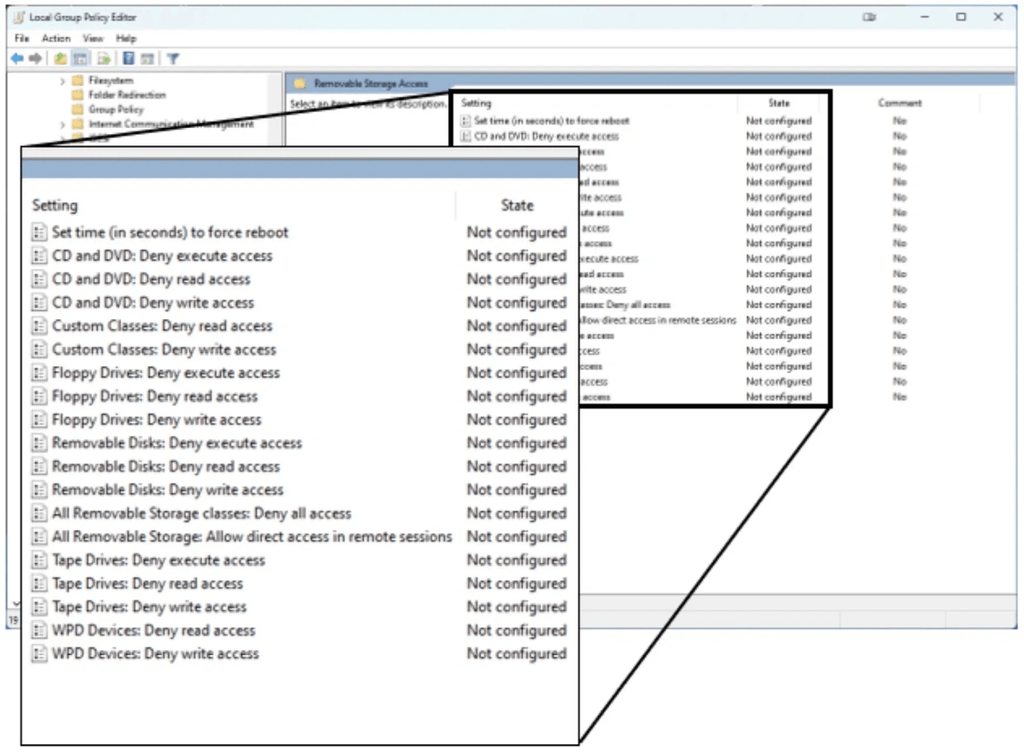
- Go to the removable storage settings. For machines: Computer Configuration > Policies > Administrative Templates > System > Removable Storage Access. For specific people: the same path under User Configuration.
- Pick your level of strictness. Enable All Removable Storage classes: Deny all access for a full lockdown, or enable the per-class settings (Removable Disks, CD and DVD, WPD Devices and so on) to deny only read, write or execute.
4. Link the GPO to the right OU. Start with a pilot group, not the whole domain. Somebody in finance definitely has a USB-only label printer nobody told you about.
5. Apply and verify. Run gpupdate /force on a test machine, plug in a drive, and confirm Windows refuses access. Then check gpresult /r to make sure the policy actually applied.
6. Add device installation restrictions. Under Computer Configuration > Administrative Templates > System > Device Installation > Device Installation Restrictions, allow only the device IDs or classes you approve, and block the rest. This is the step that catches BadUSB devices posing as keyboards, which the storage policies don’t see.
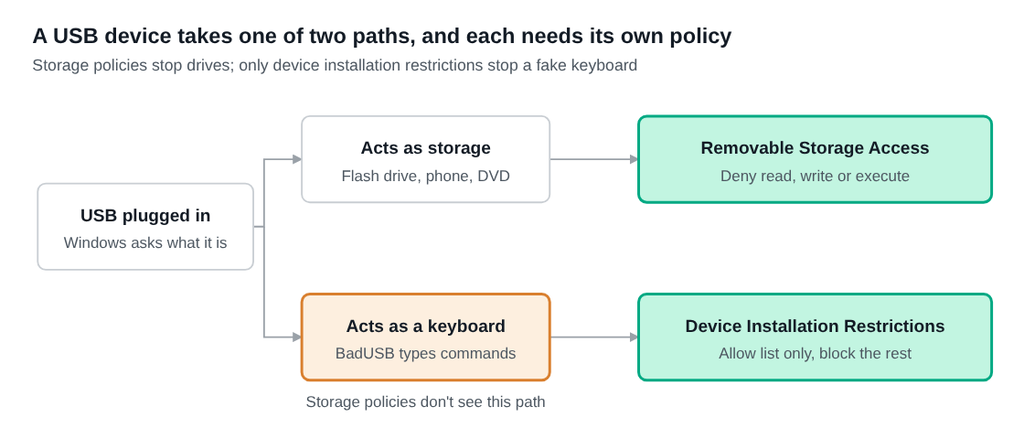
A flash drive and a BadUSB stick look identical in your hand. Windows treats them as completely different devices, so you need a policy for each path.
Which Group Policy setting to use
Each media type gets its own deny read, deny write and deny execute settings, so you can lock things down as tightly as your business can tolerate.
| Setting | What it blocks | Good for |
|---|---|---|
| All Removable Storage classes: Deny all access | Every removable storage class, read and write | Kiosks, shared PCs, high-security teams |
| Removable Disks: Deny write access | Copying files to USB drives; reading still works | Stopping data leaving while people still open files they receive |
| Removable Disks: Deny execute access | Running programs from a USB drive | A light-touch first step against USB malware |
| CD and DVD: Deny read/write | Optical drives | Older machines that still have them |
| WPD Devices: Deny read/write | Phones, cameras and media players over MTP | Stopping “I’ll just charge my phone” file transfers |
| Tape Drives, Floppy Drives: Deny all | Legacy media | Servers and old hardware |
| Device Installation Restrictions | New devices of any type, including fake keyboards | BadUSB protection, with an allow list for approved hardware |
If you’re not sure where to start, deny write and execute on removable disks everywhere. It stops most data leaks and most USB malware, and it breaks very little.
What Group Policy can’t do on its own
GPO is a great free control. It’s still a blunt one.
It doesn’t block fake keyboards. BadUSB devices register as a keyboard, not as storage, so Removable Storage Access ignores them. That’s why step 6 matters.
Exceptions are clunky. GPO targets users and computers, not specific approved drives. If one team needs encrypted company USBs, you’ll be juggling security groups or device ID allow lists.
It only covers domain-joined Windows. Macs, Linux boxes and personal laptops on the guest Wi-Fi don’t care about your GPO. Intune-managed devices need the equivalent settings in Intune instead.
Nobody gets told when it happens. A blocked USB attempt is quiet by default. If someone plugs a mystery device into the CFO’s laptop, you probably want to know. Your SOC should be watching device connection events, not just trusting the block.
Frequently asked questions
How do I block USB drives with Group Policy?
Open Group Policy Management, create a GPO, go to Computer Configuration > Administrative Templates > System > Removable Storage Access, and enable All Removable Storage classes: Deny all access. Link it to the right OU and run gpupdate /force to test.
Can I allow some USB drives and block the rest?
Yes, with Device Installation Restrictions. Allow the device IDs or instance IDs of approved drives, and prevent installation of everything else.
Does blocking USB storage stop BadUSB attacks?
Not on its own. BadUSB devices act like keyboards, so you also need Device Installation Restrictions to block unapproved devices.
Will blocking USB storage break keyboards and mice?
No. Removable Storage Access only affects storage classes. Device installation restrictions can affect keyboards and mice, so allow those device classes before you enforce them.
Do I need third-party software to control removable media?
Not for basic control. Group Policy covers allow, deny, read, write and execute for each media type. Extra tools mostly add reporting and per-device exceptions.
Stop trusting things just because they’re plugged in
You can’t stop people from finding USB sticks in parking lots. You can make sure finding one is the most exciting thing that happens. A single GPO, a pilot group and an allow list for the hardware you actually use close one of the oldest doors attackers still walk through.
If you’d like a second pair of eyes on your endpoint policies, or someone watching for the device that gets plugged in at 2 a.m., book a call with our team. We’ll walk through your setup and show you where the gaps are, whether or not you work with us.
By Michael Darlan, Cybersecurity Specialist at OneAxiom